Wednesday, 16 August 2017

Route to production - as a technical architect

The role of a developer is pretty much clear and concise. However the role of a technical architect some what gray. Generally, a solution architect should be able to deliver a blueprint to a technical architect and walk away. I understand that this is an extremely naive way of looking at things, but you get the idea.

Hows thing are done

My role as a technical architect was focused on guiding the development team, enforcing the governance and adhering to the essence of the solution blueprint. From the face of it, this sounds pretty awesome.

I loved being part of the development team and cutting code. I know numbers of architects who are expert Microsoft Visio or Word users. But I prefer the a middle path.

I made choices of the frameworks and patterns that should be used for the solution. I looked at each problem in details, devised solutions and attempted to get the team onboard. I did fail number of times because there were disagreements how things can be done or what framework to use.

It was sometime easier to do the work myself. I would knock off the code within few hours which would have taken a week or so for a developer. In hindsight I think this was a bad decision. I should have tried to get the team onboard but I learned my lesson.

More I spend time with the team, I realised that I was neglecting my duties as a technical architect. I needed put in place deployment, packaging, monitoring and auditing. We used SCOM for some of these, and other alerting mechanisms. I had to talk to other teams and vendors to ensure production environment was ready for the solution.

Lonely 

I think leadership of any form force you to a corner. It does not matter you sit with the development team or not. If you are making decisions for a team, you will be isolated.

I committed lots of code the solution but no one was there to help with my work. There was no one to talk to Infrastructure team or Networks. I had to carve out time do this. I had to document the design decisions. This took time and I and only I did this.

Even though the developer could shoot off to the pub, I had spend countless hours updating developing documentation and liaising with other teams.

Day T - 1

The day before the release to production is always challenging and nervous. At this point I would  have spend countless hours designing, developing and most importantly championing the solution, but nothing prepare you for T - 1.

Day T

This is when the solution is available for the public. Great and humble experience!

Day T + n

This is the day I received the first production incident.

The cycle never stops unfortunately.


Friday, 21 July 2017

Route to production! - as a developer

I have heard many stories and quotes in the past that directly points to the title of this post. This is my take of the subject.

There is no doubt that every developer (including myself) would like to spend many hours perfecting the software engineering art. We love our design patterns, SOLID principles, frameworks and runtimes. Any passionate developer can spend hours talking about these subjects. These aspects of software engineering is so important that without it, any project can get out of control and possibly fail.

My journey

I was fortunately to be a developer on a very large and complex enterprise solution. I also played the role of technical architect and solution architect in two separate medium/small solutions. In this post I would like to share my role in getting the solution into production.

As a developer

Being a developer is a fantastic experience. I read in many articles that we stand on the shoulders of giants. I think that is absolutely correct. The open source movement, stack exchange has brought the developers of the world together.

I loved being a developer of the large and complex solution. It was a payment system which had numerous integrations and challengers. In fact the solution may look quite complex at first glance, but it was broken down by context (e.g. refunds, payments). This breakdown allowed any developer to focus on one area of functionality.

The team itself was large, and had an amazing breadth of knowledge. Some days I would spend hours going through my colleagues code as it was an art!

I was happy and joyous. I would have long lunch breaks and discuss the latest trends (e.g. microservices, functional programming) in the industry with my colleagues.  Sometimes, the debates inevitably got heated! but that was the fun of it.

The solution was owned by a solution architect and a business analyst. I never took too much notice of these guys, as the stories and tasks that were allocated was descriptive enough. Once in a while I would consult and ask the intent and the context.

The colleagues outside the team did not like the solution architect. I heard stories of him storming out of meeting and being rude to some. This was very strange as none of us in the technical team felt any hostility. The solution architect use to tell us that few hours he spends with the technical team was the best time of the day! We took it as a pinch of sugar and salt!

The solution had multiple components deployed across various systems. I never had to worry too much about the deployment topology. The code I wrote, went through the normal development cycle and ended up in production. I did know the end-to-end system. I could describe each component and how it relates to the business function and why it is needed.  I was proud of my work, and I received positive feedback from the customers. That was a great feeling! Each day, I would take a cursory look at the logs to ensure there is nothing odd.

The deployment pipeline was a heavily automated. From the engineering aspect, the only manual step was the selection of the appropriate package to test, stage and push to production. The quality assurance (QA) activity was mixed (automated and manual) as we had to depends on other teams to confirm.

Keeping aside my social life, I had the opportunity to look at the next shiny thing! The life was great!

Reflecting on the title of this post, I was not too involved with how and where the solution got deployed. I had queries from other teams but nothing to pull my hair out. Most of the queries were related to check whether this or that feature is working, what account, what permissions etc.

The solution now sits in production serving millions of customers each day without a sweat. Perfect!

Whats next

The times change, how teams are organised change and yes, change is everywhere. In the next post I am going to discuss how my role changed and what impact that had on myself.

Saturday, 8 April 2017

Useful AWS commands

  • aws iam list-users
    • Gets a list of users in the AWS account. Returns full details of the user object.
  • aws iam list-users --query Users[*].UserName
    • Gets a list of user names in the account.
  • aws iam list-policies 
    • Returns a full list of of AWS policies which includes AWS managed and customer defined.
  • aws iam get-account-password-policy
    • Returns the password policy of the account. If none defined, returns "NoSuchEntity" error.
  • aws iam get-account-summary
    • Returns the limits of the account. Useful to find out what the limits and request increase from AWS support.
  • aws iam list-policies --only-attached
    • Returns a list of policies that are attached. Useful to find out what policies are being used.
  • aws iam list-policies --only-attached --scope Local
    • Gets a list of policies that are managed by the customer that are attached (ignoring AWS managed ones). Useful to detect how many customer defined policies are being used.
  • aws iam list-entities-for-policy --policy-arn "ARN"
    • Lists the users, groups, roles and resources that are using the given policy. 
  • aws ec2 describe-regions
    • Returns a list of regions available. In order for this command to work the "region" in the CLI. If the "region" is not specified we can use "aws configure" to configure a region.

Sunday, 3 April 2016

AWS labs on qwikLabs platform

Last month @sebsto (March 2016) announced that all the labs on qwikLabs were FREE till the end of the month (March 2016). This was a great opportunity to learn (by doing) Amazon Web Services (AWS).

I managed to complete 2 Quests and have to say that my experience was pretty great. By following the labs I ended up spending more than 10 hours using the AWS platform for free. In the process I launched multiple EC2 instances, databases and deployed an application to a Docker container.

Completed Quests over the free period


When I started using AWS, I was not so sure what services were eligible for the free tier and ended up getting a bill at the end of the month. Since then I have been careful on what I use and switched off virtual machines as soon as the work is complete.

Now the offer period is finished, I can only wish the offer was extended (but it was not). But on the positive side, there are dozens of free introductory labs on offer. I think once you get started on a service you should be able to follow the documentation and learn about it a bit more. Therefore the free labs should be enough for me to start looking at new services without any risk of getting a bill at the end of the month.

My recommendation is to do as many labs as possible and learn about the platform. As many say, there is no substitute for the real hands-on experience, and these labs will start you on your journey.

Saturday, 12 March 2016

AWS: 6. Improving CloudFormation template

The previous post covered the AWS CloudFormation template that I developed to provision the environment to deploy the "ApiService" web service. The following diagram illustrates my journey so far.

AWS Services used and their interaction
Although it looks very simple I covered many AWS services including EC2 Config Service (the service to bootstrap a Windows instance).

In this post I plan to improve the AWS CloudFormation template by implementing the following features.
  1. Further parameterisation 
  2. Creating the requisite Identity and Access Management (IAM) role
  3. Creating the Virtual Private Cloud (VPC) security group

Parameterisation


The new parameter section looks like the following.


I have parameterised the template so that the security key, availability zone, VPC and instance type can be determined at deployment time. I have also updated the template to resolve the Amazon Machine Image (AMI) through the "mapping" section. The mapping section follows a "dictionary" pattern where the key can be passed through using the intrinsic function "Fn::FindInMap".  See the following.


New IAM role


The purpose of the IAM role is to allow Elastic Compute (EC2) instance access to the Simple Storage Service (S3) bucket to download "ApiService" service binaries. In this particular case I am creating a role that has full access to S3 service. I have to admit that the syntax is not very intuitive.

The first step is to create the role. Thereafter an "Instance profile" resource needs to be created. From that I can gather, the Instance profile is an envelope that contains the role. This envelope is used to pass the role information to the EC2 instance.


Setting instance profile during EC2 provisioning.
The main benefit of the refined AWS CloudFormation template is that it creates the resources instead of using existing ones (e.g. security group and role). This can be very powerful because each stack can be created, and rolled back without leaving any residue.

The IAM role and Security group is created as part of the script and the only external resource I am depending on is the VPC. The VPC provides a personalised boundary over networking resources on the AWS platform and it is not something you should treat lightly. Normally there will be network engineers responsible for configuring and I doubt you will use an AWS CloudFormation template to provision a VPC (although it is totally possible, in fact I think we MUST to aid repeatability).

The updated AWS CloudFormation template is available here.

In the next post I plan to look at monitoring as it is something most developers leave to last. In my opinion monitoring must be a first class citizen of any solution design.

Monday, 7 March 2016

AWS: 5. Automating the deployment and provisioning using AWS CloudFormation Service

In the previous post I deployed the "ApiService" to the AWS Platform using the .NET SDK.
That was really powerful and a step towards automating the provisioning/deployment process.

If we take a step back and look at the deployment of an application to production, you do not see C# code being executed to provision the production environment. This begs the question whether there is another way to deploy our simple application. In this post I am going to attempt using the AWS CloudFormation service to provision the environment and deploy the application.

AWS CloudFormation service


The AWS CloudFormation uses a form of Domain Specific Language (DSL) to define an environment. The AWS CloudFormation service accepts a text file that defines the environment and provisions it as a "Stack".

The following points describes some of the key benefits of AWS CloudFormation that I see as extremely valuable.

  • Automatic rollback when provisioning fails - my favorite!
  • Developers are fully aware of the production environment. 
  • Any change to the environment is managed through the CloudFormation template. (no random changes)
  • Allows repeatability to provisioning; hence can move between regions.

There are tons more benefits of using AWS CloudFormation, and refer to the documentation to find out more information.

Provisioning and deploying using AWS CloudFormation


The first step is to create a CloudFormation template. The template uses the JavaScript Object Notation (JSON) format. You can use any text editor to create one and I used Visual Studio Code as it has fantastic support for JSON.

A CloudFormation template at a minimum must contain a "Resources" section. This section contains the resources that must be provisioned. The template I developed for the ApiService looks like the following.

I think the above section is pretty clear and can be read without knowing too many details of CloudFormation. The section describes an EC2 instance and sets some properties such as Amazon Machine Image (AMI), Security group etc. These properties can be mapped directly to the .NET SDK example that was in the previous post. You can even see the "UserData" (bootstrap script) being used to install the application.

I have used some functions such as "Fn::Base64", and in AWS lingo these are called intrinsic functions. The parameters to the functions are passed using the JavaScript array format ("[]").

Parameterisation


Although it is not necessary, I have parameterised the template so that some of the values are defined at deployment time. There is a special section for parameters which is called "Parameters" (surprise). The parameters section looks like the following:


I have allowed the AMI, availability zone and Key name to be defined at the deployment time. Normally parameters are used to define values that should not be stored in the template such as passwords.

There is another section called "Outputs", that can be used to display information such as service endpoint or anything else that is useful once the provisioning is complete. In this particular case I am displaying the service endpoint.


Using the template


I used the AWS Console to upload the CloudFormation template. Of course this can be done through the AWS CLI too. The Create Stack option needs to be selected from the AWS CloudFormation landing page.

Creating a New Stack using AWS CloudFormation service

The next step is to upload the CloudFormation template.

Uploading the CloudFormation template

The next screen brings the CloudFormation template into life! The values specified in the parameters section is set available. (See the following)


Setting Parameters in the template

At this point CloudFormation starts provisioning the environment.

Provisioning the ApiService environment

The "Events" tab contains a list of activities that is being performed by the AWS CloudFormation service. Once the provisioning and the application is deployed, the "Outputs" tabs is populated with the endpoint to the "ApiService".

"Outputs" tab with service endpoint

The "ApiService" is now fully operational.


Service fully operational


There is no doubt the AWS CouldFormation service is so powerful and I simply scratched the surface. In the next post, I am going to look at AWS CloudFormation in bit more detail and try to incorporate few more best practices. 

PS - The full template is available here.


Sunday, 28 February 2016

AWS: 4. Lanching an EC2 instance using .NET SDK

It is great to be able to very simply launch an EC2 instance and install the application using nothing but a S3 bucket (with binaries) and a bootstrap script. Imagine if you were able to automate this process.

There are multiple ways to interact with the AWS platform. The AWS Command Line Interface (CLI) and AWS Software Developers Kit (SDK) are one of the few methods. These methods allows developers and system administrators to write scripts to interact with AWS resources. In this post I will be using the AWS .NET SDK to automate the launch process of an EC2 instance.

The AWS .NET SDK has undergone a major restructuring during the last year. Now the .NET SDK is split by AWS service. The NuGet package of a service itself is split into two components, the "Core" dynamic link library (DLL) contains all the plumbing (signature creation etc.) and "Service" DLL contains the supporting classes for the service. The NuGet package that I will be using for this post is "AWSSDK.EC2".

I strongly recommend looking at the AWS .NET blog for updates and tutorials. 

The following .NET code launches a new EC2 instance and does exactly what the manual steps did in one of the previous posts.


The key pieces of information that is of interest are the following.

  1. The Amazon Machine Image (AMI) - In this particular case it is the golden image I created.
  2. Key pair - The *.pem key use to decrypt the administrator password.
  3. Security group - The security group that opens inbound port 88 and Remote Desktop Protocol (RDP) port. 
  4. The region where the instance will be launched
The above values needs to be obtained from the AWS Console except for the region information. Normally the region information is specified as an attribute in the AWS SDK configuration. In my case I am using "eu-west-1". 

There is tons of best practices around securely storing the AWS credentials so that you reduce the risk of adding it to a public repository like Github. Therefore I suggest you look at this post

So far so good. I managed to automate the EC2 launching process and able to horizontally scale the application with manual execution of the above script. In the next stop I am going to look further into automating the launch process. 

Wednesday, 17 February 2016

A word on passing AWS Solutions Architect - Associate exam

The AWS Solutions Architect - Associate (SAA) exam is a very interesting beast and there is no doubt it is a valuable certification. Last week I managed to pass the exam with 72% which I am quite happy about (wonder where the last 28% went....)

I have worked with two camps of people, some who believe that certification is a fraud made up by vendors to make "more" money, and some who see it as a valuable achievement. I see certification as a nice to have personal goal, but never a replacement to real world experiences.

My advice for SAA exam is pretty simple. Give yourself at least 2/3 months and use the AWS platform as much as possible. Always start with basic tasks such as creating a S3 bucket, and attempt to use features in S3 to "productionise" it. Then think about how the S3 bucket can be compromised, and whether there are any safeguards in the platform that you can use. The AWS documentation is perhaps the best documentation I have ever come across. It is clear, concise and quite easy to understand.

There are number of courses in Udemy and I recommend you follow one of them. The Udemy course covers almost everything you need to know, but remember to understand the concepts. Knowing and understanding are two different things and make sure you follow the documentation to fully understand the concepts. I am not a bright person, and had to spend many hours reading through documentation to understand certain concepts. There are tons of materials on YouTube (AWS Deep Dives) that is extremely useful if you want to understand "how" and "why" certain things work the way they do.

Lastly, if you are taking the exam in the morning, make sure to have a very good breakfast and strong coffee because you will need it. The questions can be very long and you have to concentrate. Read the questions to the end and try hard to understand the question in the first or second go. Passing an exam require practise; what I mean here is not practising on the AWS platform but the good old questions. Find as many questions as you can, and do them many times. Try hard not to remember the answers but the concept. Research the questions; I found this to be very valuable, because it took me to parts of the documentation that I would never have read.

Good luck - you will need it!

Tuesday, 19 January 2016

AWS: 3. Executing user data scripts at boot time

In the previous post I installed the AWS CLI in order to aid in accessing S3.


Enabling Instance user data script execution on startup


I would expect the script added to the user data section to execute during the boot up time. Generally this is the case, but in this particular case the script will not execute. The reason for this is that scripts specified in user data is executed once at the initial boot time. Launching a new VMs based on the custom AMI with user data is ignored because of this.

All hope is not lost through... because there is a way to enable user data script execution on boot up.

The Windows instances launched in AWS is packaged with a service called "EC2Config Service" which is used to enable advance feature. For more information refer to this.

The EC2 Config Service manages a file called "Config.xml" which is located in "C:\Program Files\Amazon\Ec2ConfigService\Settings" folder. This XML file defines the feature/tasks that are executed at boot time. What I am interested in is the "Ec2HandleUserData" feature that is the set to "Disabled" at the moment. I need to set this feature to "Enabled" so that user data scripts are executed during the next reboot. Once executed this setting is set to "Disabled" automatically so that scripts are not executed during subsequent reboots.

There is another tag called "Ec2SetPassword" which resets the password of the instance during boot up. I have enabled this feature too.  Going forward each instance will have its own password, which is good for security. Otherwise all the VMs launched using the custom AMI will share the same password. Byproduct of resetting the password is that the user data script executes under the local administrator account permissions. Otherwise the user data script executes under the EC2 Config service user.

The base image of the VM needs to be updated once above changes are made. The following screen capture illustrates the features discussed in the above sections.

Contents of Config.xml file (We are enabling Ec2SetPassword and Ec2HandleUserData features)

Launching a new VM with boot up scripts


A new VM needs to be launched with the user data scripts. The custom script looks like below:

<powershell>
aws s3 cp s3://simpleapistartup/ c://deployment/ --recursive
cd c:\Deployment
.\ApiService.deploy.cmd /Y -enableRule:DoNotDelete
</powershell>

Adding user data script during launch time


Once the VM is launched successfully (and both system and instance checks passed), I can simply use the following url to access the API service.

http://ec2-54-194-113-255.eu-west-1.compute.amazonaws.com:88/api/products

The domain name in this case is the EC2 public DNS name, followed by the port number (which is where the service is running). As a note, each EC2 instance has a unique DNS name, which means I need a way to aggregate multiple instances to provide a fault tolerance service.

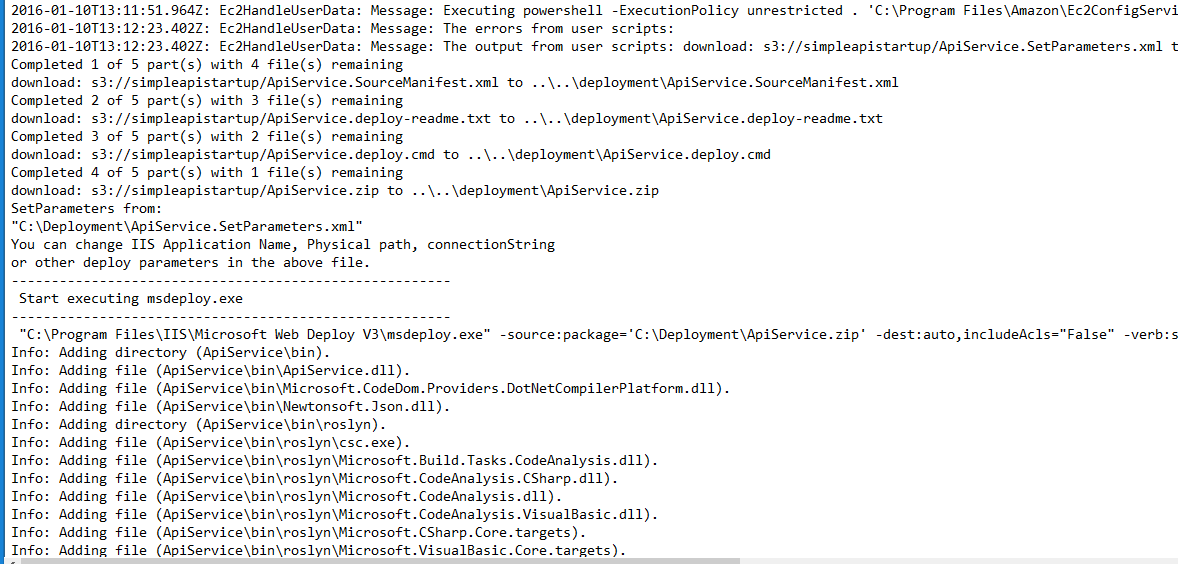
The EC2 Config service maintains a log of the execution of instance user data script. This is located in "C:\Program Files\Amazon\Ec2ConfigService\Logs\EC2ConfigLog.txt" file.

Execution of the PowerShell script
I now can launch multiple VMs with an initial boot up script and access the service without having to setup anything. This is absolutely powerful. What is great about this is that the infrastructure is immutable. In the event an instance crash, I can simply start a new instance.

In the next post I am going to use the AWS SDK to automate the launch process.


Sunday, 10 January 2016

AWS: 2. Getting the deployent files to an EC2 instance

In the previous post I created the base image with the requisite services (e.g. IIS, WebDeploy etc) for the simple API service.

Instead of logging into each EC2 instance and installing the application, it would be really nice if I can simply deploy the application on VM on start up. I can then deploy many VMs with the application with little manual intervention.

In this port I am going to do just that!


Moving the deployment files to Simple Storage Service (S3)


The S3 is a highly available and highly durable object storage service on AWS platform. The AWS platform itself use S3 as a backing (e.g. log files, backups).

The first step is to create a bucket and upload the files to this bucket. I have called this bucket "simpleapistartup". I can simply use the "Upload" button to upload the files to the bucket.

The WebDeploy packages uploaded to S3

Copying the installation files from S3 to EC2 instance


The files in the S3 bucket needs to be copied to the EC2 instance on startup. In order to copy the files, the EC2 instance must have access to the bucket. The recommended solution for accessing the bucket from EC2 instance is to create an Identity and Access Management (IAM) role and associate the role with the EC2 instance. The IAM roles allow AWS resources access to other resources without having to explicitly provide access or secret keys.

The IAM role can only be associated with an EC2 instance at launch time and not when it is in running state.

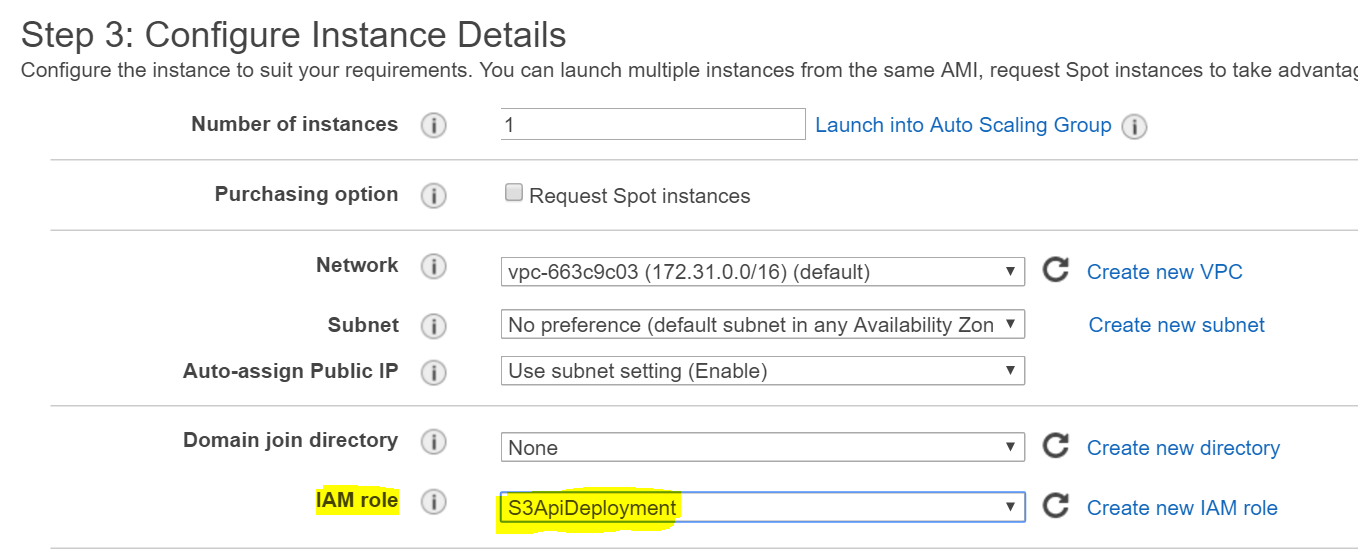
I have created the role "S3ApiDeployment" that has full access to S3 and associated it with the new instance.

Associating the role when launching a new EC2 instance

The next step is to provide the initialisation script to download the files from S3 to the C:\Deployment folder in the EC2 instance.

The AWS Command Line Interface (CLI)


The AWS CLI is a command line based interface for developing scripts to execute against the AWS Platform.

The first step is to download the AWS CLI from here. There are multiple flavours and I have chosen the CLI for Windows. Once installed I can execute commands such as the following to access S3.
  • aws s3 ls - lists all the buckets from S3


The plan is to run a script at VM boot time to download the files from S3. The following script copies the "simpleapistartup" bucket content including subdirectories to c:\Deployment folder.
  • aws s3 cp s3://simpleapistartup/ c://deployment/ --recursive

EC2 User data


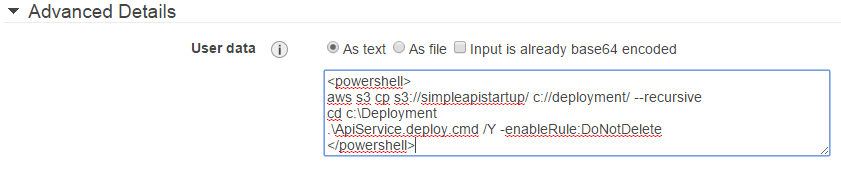
The installation script is passed to the an EC2 instance through Instance User data. The User data is set during an EC2 provisioning stage. See the following screen capture.

Setting initialisation script through User data
It is important that "As Text" radio button is selected because the content is base64 encoded when transferring to EC2.

The AWS CLI script needs to be wrapped in "<script>" or "<powershell>" tags. See the following.


I decided to use "<powershell>" tag because I plan to include Powershell commandlets in the future.

OK!, this is enough for this post. In the next post I will launch an EC2 instance which will run the above script to copy the deployment files from S3.

References:

Monday, 4 January 2016

AWS: 1. Creating a base image to make deployment faster

In the previous post I deployed a WebAPI service to an EC2 instance and accessed it externally.

The Windows VM image (Amazon Machine Image - AMI) I used did not have Internet Information Service (IIS) or WebDeploy installed. I had to enable or download these features or install.

What IF I needed anther VM to deploy the same application. Then I need to follow the same steps to install the components and features. This is not a very scalable process. The solution is to create a base image or golden image. Then I can create multiple VMs using the same image.

Creating the base image


The EC2 Dashboard provides the facility to create an image based on a running or stopped EC2 instance.
Creating the base image
The "Image" selection in the above menu allows me to create an image. The process to create the image can take few minutes and once created it appears under "Images"/ AMIs side menu.

Base image location

Launching a new VM using the base image


The base image is available under "My AMI's" and can be selected during the EC2 launch process.

Selecting the base image during EC2 launch
 I can follow the same steps and deploy the application without having to install any components.

Successful deployment
The deployment is successful!.

Now the base image is ready and I can deploy the application very quickly. In the next post I am attempting to make this process a lot faster. (Automation!)

Thursday, 31 December 2015

AWS: 0. Deploying a WebAPI Service to EC2 instance

I have been reading so many great articles and watching videos about the AWS platform from the community for many months. Most of these resources form part of a larger solution and sometimes fails to discuss the full picture.

My attempt is to start a very simple project using ASP.NET MVC WebApi and deploy to AWS. I know there are pre-baked services such as AWS Elastic beanstalk where the deployment is made simple with templates. That is not the point.

I am going to start with poor man's deployment techniques (e.g. copy/paste) and work my way up the AWS platform.

To get started, I need a Windows Virtual Machine in AWS that can be accessed publicly.  Then I will deploy my application and access it externally. I am going to deploy a ASP.NET WebAPI project that returns a simple response.

Creating a Virtual Machine


The EC2 Console allows us to launch an instance.

EC2 Dashboard where the an EC2 instance can be launched

In order to host the Web API, I am going to select a Windows VM. I have selected a Windows 2012 R2 base image which is AWS free tier eligible.

Public IP address for the instance


I have accepted all the defaults from the wizard, which setting an public IP to the instance. This is very important because without a public IP address, we cannot connect to the instance from the Internet.

Auto assigning a public IP address to the instance

Connecting to the Virtual Machine


In order to connect to the VM, I need two pieces of information. These are 1) public IP address 2) Administrator password.

We can find the public IP address from the EC2 Dashboard. During the launching phase of the VM, I had to create/use key pair (pem file). This is required to decrypt the administrator password.

Once decrypted, I can connect to the VM using Remote Desktop Protocol (RDP).

Deploying the package


I packaged the WebApi solution is packaged as an WebDeploy package, simply to aid in deployment. The packages can simply be copied over to the VM (copy from local machine and paste in VM).

WebDeploy files copied over to the Windows VM on AWS Platform

The WebDeploy deployment package can be installed using the generated "cmd" file. I am using "-enableRule:DoNotDelete" flag to prevent WebDeploy from deleting the package.

Installing the WebDeploy package in Windows VM

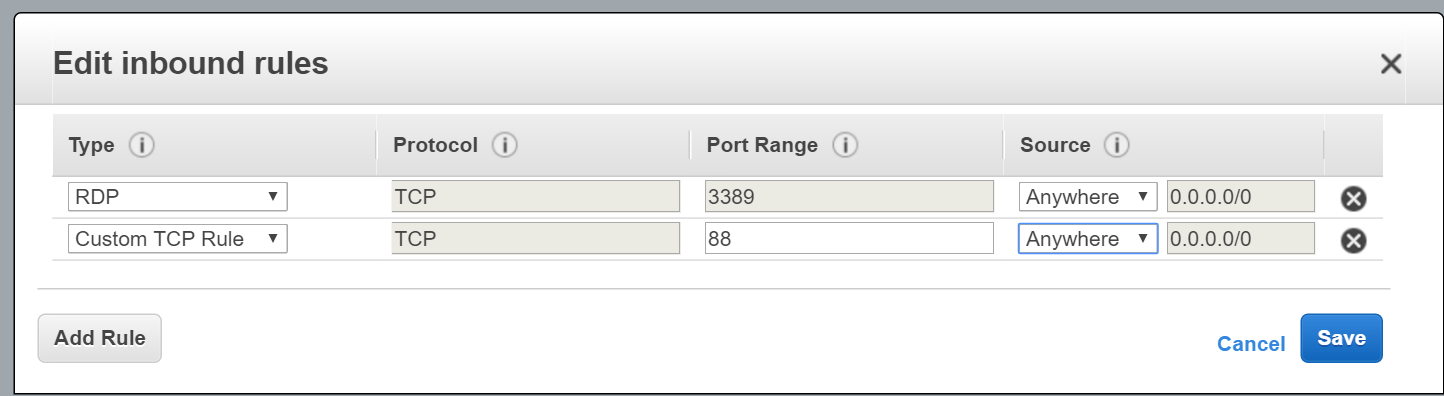
Although the installation was successful, the service cannot be accessed publicly. The firewall of the instance only allows traffic over port 3389 (for RDP). Therefore I need to open the inbound port of the site.


Opening port 88 to the world

The change to the security group is applied immediately. In addition to this step, I need to open the port through the Windows Firewall because the service is hosted on a non-standard port (I chose to host the site over port 88).

I can now access the service publicly.

Connecting to the service remotely
So there you go..

In this task, I simply started up a Windows VM and copied our WebApi code and accessed it over the Internet. Except of for few security group configurations, there was not anything new compared to on-premises deployment.

In the next port I am going to look at how this process can be improved so that we are ready for the "cloud".


Friday, 25 December 2015

AWS: No internet access on default VPC

The launching an EC2 instances on the AWS platform is pretty easy and hardly a task. However things get pretty interesting when things does not work.

After blindly accepting all the defaults for launching an EC2 instance, I could not open an SSH session to the server. The connecting was timing out.

Take 1

I was using a Windows OS to connect to Linux.  The Windows firewall the first point of interest. The connectivity still failed after opening up port 22 on my Windows machine. So this was not the issue.

Take 2

The AWS security group was the next. The AWS security groups provides an instance level firewall that allow traffic to an instance. Generally this AWS warns if you do not open up SSH or RDP port. (I did not see this) I checked the Security group and the SSH port was opened for inbound. All traffic was opened for outbound. So the security group was not the issue.

Take 2.1 

In pure desperation I launched a different instance in a separate Availability Zone. This new instance allowed SSH connectivity. So could it be an issue with AWS? The next point of call was to check whether the EC2 service is operating normally in the region using the AWS health portal. This was fine!, so its not AWS.

Take 3

Instances connect to outside world through an Internet Gateway. As the name implies, an Internet Gateway allows a subnet to connect to the internet. I checked the subnets route table and I can see that the outbound traffic from 0.0.0.0/0 is being forwarded to the Internet Gateway. There is nothing wrong with the Internet Gateway.


Take 4

The network traffic flows through the Network Access Control list (NACL), which is at the subnet level. To my surprise the outbound and inbound traffic was set to DENY. At this point I realised that the network traffic was being stopped at the NACL level. The solution was quite simple, I simply added 0.0.0.0/0 ALLOW rule for both inbound and outbound NACL before the DENY rule. Remember that NACLs are stateless and rules are executed in order. By adding the ALLOW rule before the DENY rule allowed the network traffic to enter and leave the subnet.. and most importantly I had my internet


Monday, 23 November 2015

AWS Command line

I have to admit that AWS Command line probably is the best thing about AWS.

I started using the AWS Command line over PoweShell and it is amazingly approachable and user friendly. 

If you are playing around in the UI, I seriously suggest using the AWS Command line. More info here.

Next step is to start using it in the Mac.

Tuesday, 16 June 2015

SQL Server Memory consumption (7GB)

My development machine started to run at snails speed with just a single instance of Visual Studio and SQL Server 2014 running. I have 8 Cores and 16GiB memory. 

The memory consumption was around 15.3GiB and it was hovering around the same figure continuously. 

Sql Server 2014 memory consuption

After hours of research I noticed that I had Distributed Transaction Coordinator (DTC) service stopped and disabled.

Distributed Transaction Coordinator (DTC) in operation

After restarting DTC service and restarting SQL Server, the memory consumption simply dropped to 7 GiB in total. 

Always check DTC Service if memory consumption with SQL Server is way over the top.

Monday, 8 June 2015

AWS: The specified queue does not exist for this wsdl version (.NET)

One of the demo applications I was working on suddenly started failing with the above error message.

This issue occurred when the AWS .NET SDK was used. Following is a list of pointers that might help you debug the issue. In my case it was the region information that somehow got lost!.

  • Log into the AWS Console and see whether the queue is present. This is a trivial check. However make sure to check region (e.g. EU Ireland, US West etc). The region is very important because queues are tied to the region you create them.
  • Then ensure you are using the correct fully qualified queue name. The fully qualified queue name includes the ARN (Amazon Resource Name) followed by the account number and the queue name.


Fully qualified queue name

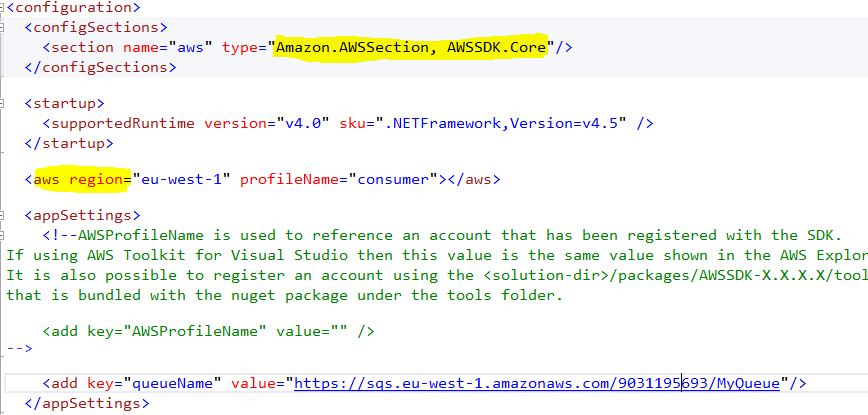
Once the above checks are confirmed you will need to ensure the code is using the same details. Normally about details are specified in the app.config (or web.config) file.

Specifying region using app-settings keys


The region details are specified in the following format:

Specifying the app settings (old style)

Alternatively, the more modern approach is through the custom app setting section.

Specifying region details through custom config section

Last resort


Once all the above steps/verification have been exhausted, you need to manually specify the region information in the code. See the following code snippet. 


The region endpoint is a property of the "Config" object and this can be set to the "RegionEndpoint" enumeration. 

The above code was the solution I used even with the fully qualified queue name is set in the app.config. Pretty odd in my book!!


Monday, 1 June 2015

Playing around with Amazon SQS (3) - sending messages

The previous posts illustrated the steps that are advisable for setting up the environment for an SQS application.

It is time to write some code!

The AWS toolkit for Visual Studio


The folks at AWS have been very kind to provide an amazing API coupled with a document and an toolkit for Visual Studio. The first task is to download and install the AWS toolkit for Visual Studio. This toolkit is similar to the services available in the AWS Console.

AWS toolkit for Visual Studio
The highlighted areas in the screen capture is quite important. 

The "profile" directly links to the secret key and access key. Profiles allow developers to access access keys securely rather than storing them in source control (app.config file). 

Normally AWS services are created in a region. The queue "MyQueue" was created in the Ireland region hence using the EU West as the region name. 

Refer to this link for more information.

Adding NuGet packages


The NuGet packages for .NET SDK are now streamlined for each AWS service. This makes the AWS assembly small. Here is a great link around the motivation to modularise the SDK.

Adding AWS SQS NuGet package


* Note that the NuGet package is still in preview (hopefully not for too long!)

Sending messages


The "Amazon.SQS.AmazonSQSClient" class is the entry point to SQS. Once an instance is created, the "SendMessage" or its async counterpart "SendMessageAsync" is used to send messages.

Consider the following sample code.


One of the questions that might arise here "how do you specify the account to use?". This is specified in the app.config file.


There is no explicit mention of an account but a "profile" is used to access the service. 

The messages appear in the AWS console once the above code is executed.

Messages in AWS console

OK, the messages are in AWS now, so how to receive these? That is the topic of the next post!

Saturday, 30 May 2015

Playing around with Amazon SQS (2)

In the previous post, I showed the way to create a queue and looked at some queue meta data. The next task is to create a couple of users with just enough permissions to use the queue.

There are multiple ways to set permissions to a queue. The permissions can be set at the queue level or user level. For the purpose of this post, I have decided to use user level permissions.

"Producer" and "Consumer" user permission

The Producer user require permission to send messages to the queue. The Consumer user receive message from the queue. The first step is to create these users in the IAM console.

Creating Producer and Consumer users

By default the "Generate an access key for each user" is checked. I have unchecked this for the moment. The access key is used by an application to make a connection with AWS.

The access key is comprised of two keys. The access key and the secret key. Consider these as username and password. Once the keys are generated AWS allows only a single chance to download the keys. However you can create multiple keys for each user.

User groups

Normally at this stage we set the required permissions to the users. However AWS recommends creating a user group and set permissions at the group level. This may be bit of an overkill in certain situations. However setting permissions at the group level is a tried, tested and reusable way to share access. 

Creating the Writer and Reader user groups

The AWS wizard prompts to associate a "Policy" when creating an user group. This can be skipped for the moment. Once the two user groups are created they are displayed in the user groups table. Notice the "Users" column, there are no users in these groups yet.

Add user to the group

The Producer and Consumer users must now be associated with the their respective group. This is achieved by selecting the user from users table and selecting "Add users to Group" from the following group property page.

Adding user to a group

The Producer user should be associated with the QueueWriter group and Consumer user should be associated with the QueueReader group.

Creating a new permissions ("Policy")

The permission to access a resource is configured through a "Policy". We need to create a simple policy to restrict access to the QueueWriter user group. This is where AWS shines in my opinion.

We need to select "Policies" from the IAM console and select "Create Policy".

Creating a new policy

The policies themselves comes in two flavours. The Amazon managed policies refers to "System" policies that have commonly used permissions bundles together. There is also the option to create custom policies. This is massively powerful, as we could start off from a Amazon managed policy and customise based on our requirement. 

Creating a custom policy based on an Amazon managed policy
The search for "SQS" and select "AmazonSQSReadOnlyAccess" policy to edit.

Editing SQS Read-only policy

Yes, this is a JSON fragment that describes the permissions associate with a read-only policy. This is not quite what is needed and needs to update next.

To start with, the policy name should be renamed to something meaningful. The "Actions" in the policy specify the allowed permissions. The "sqs:GetQueueAttreibutes" and "sqs:ListQueues" can be removed. The "sqs:SendMessage" is the replacement.

The "Resource" should be set next. In the previous post there was an explicit note to the fully qualifies resource name (ARN) of "MyQueue". That information is required to set the resource details. The completed policy looks like below:

Policy to send messages to the specific queue

The policy is now ready to be attached to the "QueueWriter" group. Return to the "QueueWriter" summary page and use the "Attach policy" to associate the policy with the group.

New policy attached to QueueWriter user group
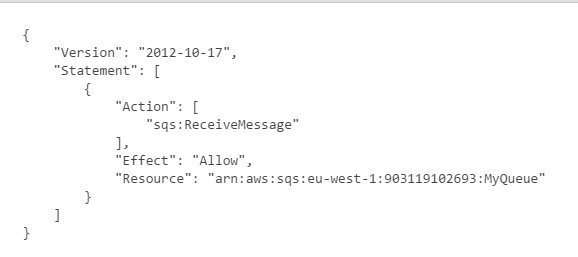
The next task is to create another policy for QueueReader user group to allow receive messages from the queue.

The receive message policy looks like below:

Receive message policy
At this point the QueueReader group is configured with receive permission for MyQueue.

QueueReader group permissions


Creating access keys for users

The access keys for Producer and Consumer users must be created next. This will allow these users to connect to AWS and send or receive messages from MyQueue.

The keys are created by navigating to the "Security credentials" section in the User summary page.
Simply select "Manage access keys".

Creating access keys for each user

Then follow the instructions and download the keys. Remember these keys are the username/password combination for each user and keep it safe!

Now we can write some code!! Get ready to use AWS .NET SDK!!


Playing around with Amazon SQS

The Amazon Web Services (AWS) Simple Queue Service (SQS) is a queueing service in the cloud. Any queueing system has a producer, who sends messages to the queue and a consumer who reads these messages from the queue. The whole point of having queueing middleware is not to overwhelm the consumer. Queueing middleware is also a choice for occasionally connecting components.

In this post I will describe how to go about implementing a very simple application using AWS SQS.

Getting started


Generally developers (including myself) guilty of simply commencing development with very little information. As our queue is going to reside in the cloud, we really should take a step back and think carefully. One of the key aspects we need to clearly understand is access permissions. We do not want our queue to be accessible to everyone under the sun. 

The service that is most talked about in any AWS conference or web cast is the Amazon Identity and Access Management (IAM) service. As the name implies, this service is used to create users/identities and assign permissions.

The producer of the application sends messages to the queue. Therefore we only require send permission to the queue. At the same time, consumer reads messages from the queue. We can create two users and assign the the minimum permissions.

Before we do create the users, we should ideally create the queue. In AWS a service is known as a "resource". So a queue is a resource. The access permissions can then be applied for the new queue resource.

If you do not have an AWS account, it is time to create one. There is now a free tier allowing a good deal of access to most of the services. Login to AWS console at http://aws.amazon.com.

The username and password you used to login to AWS Console is known as the "root" credentials.

Create the queue

In the AWS console, navigate to "Services" => "All Services" and you should see "SQS" as a selection.
AWS SQS Service under All Services

Once selected you can follow the wizard to create a queue. Make sure to accept all the defaults and name the queue "MyQueue". Once the queue is created, it appears in the "Queues" table.

Queues table with the newly created queue

If you now select the queue, AWS shows a whole collection of meta data about the queue. This is the most interesting bit.

Queue details

The URL is the public endpoint of the queue. The ARN refer to the Amazon Resource Name, which is the fully qualified queue name, that includes the region, account details and the queue name. Keep a note of the ARN as we will use this when setting permissions for the users.

The next step is to create couple of users with the just enough permissions to send/receive messages.


Friday, 8 May 2015

My first ("useful") Android app!

I have been playing around with Android Studio with help from Coursera Android courses.

The app is called "DailySelfie" (I bet the name gives it away!).

The video demo is below (this was created as a part of the final submission of one of the course):


In this post I am going to discuss how this is built and what fundamental elements were used.

Intents and Activities

The "Intent" is the eventing system in Android.  Intents are used to start an "Activity". From my understanding, an Activity refers to a self-contained user task that occupy one screen.

Intents are pretty powerful stuff. They allows passing data between screens. An Intent can also retrieve data from an Activity and return it back to the application. I used this technique to invoke the built-in camera application and return its status. The status in this case is whether the user cancelled taking the picture or not.

See the following code block:

The code creates a new instance of Intent by passing in a string constant. This string constant tells Android that "I need a way to capture an image". As there is no camera in my application, I am asking Android to find one for me. The above "kind" of Intent is known as an Implicit Intent.

It is possible that there can be multiple applications in a device that is capable of taking a picture. Android shows a dialog with all the applications that can be used to take a picture. In such situations we need to ask the user to pick the application they want to use. I am setting the title of this dialog to "Choose an application:". In theory you could have put a more customised title based on your application. By the way, Android has some conditions before choosing an application for this dialog. Check the documentation.

The fun begins when we call "startActivityForResult". This passes the Intent to Android. Android uses the Intent resolution workflow and hopefully bring the camera application or a chooser dialog to choose the application we like to use.

Language resources

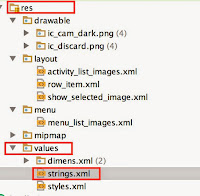
Some call this application localisation/ globalisation. We can easily make "Choose an application" an application resource by moving this to "res/values/string.xml" file.
String resources for an application

The string.xml file looks like below:


The code is update to the following:

The interesting bit here is the R.string.choose_app which maps to the string resource in the string.xml file. The "R" is built by Android with programmatic access to resources such as layouts, drawables and views (e.g. buttons).

This is enough information for the moment. In the next post I will talk about some other interesting bits!