Saturday, 30 May 2015

Playing around with Amazon SQS (2)

In the previous post, I showed the way to create a queue and looked at some queue meta data. The next task is to create a couple of users with just enough permissions to use the queue.

There are multiple ways to set permissions to a queue. The permissions can be set at the queue level or user level. For the purpose of this post, I have decided to use user level permissions.

"Producer" and "Consumer" user permission

The Producer user require permission to send messages to the queue. The Consumer user receive message from the queue. The first step is to create these users in the IAM console.

Creating Producer and Consumer users

By default the "Generate an access key for each user" is checked. I have unchecked this for the moment. The access key is used by an application to make a connection with AWS.

The access key is comprised of two keys. The access key and the secret key. Consider these as username and password. Once the keys are generated AWS allows only a single chance to download the keys. However you can create multiple keys for each user.

User groups

Normally at this stage we set the required permissions to the users. However AWS recommends creating a user group and set permissions at the group level. This may be bit of an overkill in certain situations. However setting permissions at the group level is a tried, tested and reusable way to share access. 

Creating the Writer and Reader user groups

The AWS wizard prompts to associate a "Policy" when creating an user group. This can be skipped for the moment. Once the two user groups are created they are displayed in the user groups table. Notice the "Users" column, there are no users in these groups yet.

Add user to the group

The Producer and Consumer users must now be associated with the their respective group. This is achieved by selecting the user from users table and selecting "Add users to Group" from the following group property page.

Adding user to a group

The Producer user should be associated with the QueueWriter group and Consumer user should be associated with the QueueReader group.

Creating a new permissions ("Policy")

The permission to access a resource is configured through a "Policy". We need to create a simple policy to restrict access to the QueueWriter user group. This is where AWS shines in my opinion.

We need to select "Policies" from the IAM console and select "Create Policy".

Creating a new policy

The policies themselves comes in two flavours. The Amazon managed policies refers to "System" policies that have commonly used permissions bundles together. There is also the option to create custom policies. This is massively powerful, as we could start off from a Amazon managed policy and customise based on our requirement. 

Creating a custom policy based on an Amazon managed policy
The search for "SQS" and select "AmazonSQSReadOnlyAccess" policy to edit.

Editing SQS Read-only policy

Yes, this is a JSON fragment that describes the permissions associate with a read-only policy. This is not quite what is needed and needs to update next.

To start with, the policy name should be renamed to something meaningful. The "Actions" in the policy specify the allowed permissions. The "sqs:GetQueueAttreibutes" and "sqs:ListQueues" can be removed. The "sqs:SendMessage" is the replacement.

The "Resource" should be set next. In the previous post there was an explicit note to the fully qualifies resource name (ARN) of "MyQueue". That information is required to set the resource details. The completed policy looks like below:

Policy to send messages to the specific queue

The policy is now ready to be attached to the "QueueWriter" group. Return to the "QueueWriter" summary page and use the "Attach policy" to associate the policy with the group.

New policy attached to QueueWriter user group
The next task is to create another policy for QueueReader user group to allow receive messages from the queue.

The receive message policy looks like below:
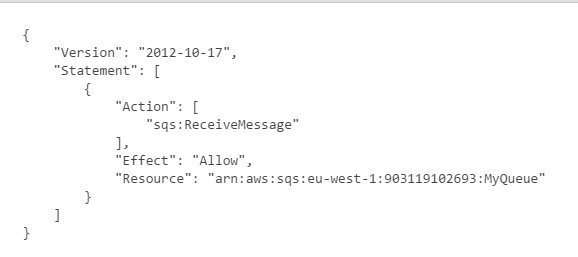
Receive message policy
At this point the QueueReader group is configured with receive permission for MyQueue.

QueueReader group permissions


Creating access keys for users

The access keys for Producer and Consumer users must be created next. This will allow these users to connect to AWS and send or receive messages from MyQueue.

The keys are created by navigating to the "Security credentials" section in the User summary page.
Simply select "Manage access keys".

Creating access keys for each user

Then follow the instructions and download the keys. Remember these keys are the username/password combination for each user and keep it safe!

Now we can write some code!! Get ready to use AWS .NET SDK!!


Playing around with Amazon SQS

The Amazon Web Services (AWS) Simple Queue Service (SQS) is a queueing service in the cloud. Any queueing system has a producer, who sends messages to the queue and a consumer who reads these messages from the queue. The whole point of having queueing middleware is not to overwhelm the consumer. Queueing middleware is also a choice for occasionally connecting components.

In this post I will describe how to go about implementing a very simple application using AWS SQS.

Getting started


Generally developers (including myself) guilty of simply commencing development with very little information. As our queue is going to reside in the cloud, we really should take a step back and think carefully. One of the key aspects we need to clearly understand is access permissions. We do not want our queue to be accessible to everyone under the sun. 

The service that is most talked about in any AWS conference or web cast is the Amazon Identity and Access Management (IAM) service. As the name implies, this service is used to create users/identities and assign permissions.

The producer of the application sends messages to the queue. Therefore we only require send permission to the queue. At the same time, consumer reads messages from the queue. We can create two users and assign the the minimum permissions.

Before we do create the users, we should ideally create the queue. In AWS a service is known as a "resource". So a queue is a resource. The access permissions can then be applied for the new queue resource.

If you do not have an AWS account, it is time to create one. There is now a free tier allowing a good deal of access to most of the services. Login to AWS console at http://aws.amazon.com.

The username and password you used to login to AWS Console is known as the "root" credentials.

Create the queue

In the AWS console, navigate to "Services" => "All Services" and you should see "SQS" as a selection.
AWS SQS Service under All Services

Once selected you can follow the wizard to create a queue. Make sure to accept all the defaults and name the queue "MyQueue". Once the queue is created, it appears in the "Queues" table.

Queues table with the newly created queue

If you now select the queue, AWS shows a whole collection of meta data about the queue. This is the most interesting bit.

Queue details

The URL is the public endpoint of the queue. The ARN refer to the Amazon Resource Name, which is the fully qualified queue name, that includes the region, account details and the queue name. Keep a note of the ARN as we will use this when setting permissions for the users.

The next step is to create couple of users with the just enough permissions to send/receive messages.


Friday, 8 May 2015

My first ("useful") Android app!

I have been playing around with Android Studio with help from Coursera Android courses.

The app is called "DailySelfie" (I bet the name gives it away!).

The video demo is below (this was created as a part of the final submission of one of the course):


In this post I am going to discuss how this is built and what fundamental elements were used.

Intents and Activities

The "Intent" is the eventing system in Android.  Intents are used to start an "Activity". From my understanding, an Activity refers to a self-contained user task that occupy one screen.

Intents are pretty powerful stuff. They allows passing data between screens. An Intent can also retrieve data from an Activity and return it back to the application. I used this technique to invoke the built-in camera application and return its status. The status in this case is whether the user cancelled taking the picture or not.

See the following code block:

The code creates a new instance of Intent by passing in a string constant. This string constant tells Android that "I need a way to capture an image". As there is no camera in my application, I am asking Android to find one for me. The above "kind" of Intent is known as an Implicit Intent.

It is possible that there can be multiple applications in a device that is capable of taking a picture. Android shows a dialog with all the applications that can be used to take a picture. In such situations we need to ask the user to pick the application they want to use. I am setting the title of this dialog to "Choose an application:". In theory you could have put a more customised title based on your application. By the way, Android has some conditions before choosing an application for this dialog. Check the documentation.

The fun begins when we call "startActivityForResult". This passes the Intent to Android. Android uses the Intent resolution workflow and hopefully bring the camera application or a chooser dialog to choose the application we like to use.

Language resources

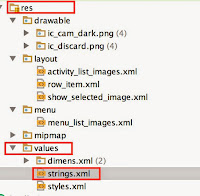
Some call this application localisation/ globalisation. We can easily make "Choose an application" an application resource by moving this to "res/values/string.xml" file.
String resources for an application

The string.xml file looks like below:


The code is update to the following:

The interesting bit here is the R.string.choose_app which maps to the string resource in the string.xml file. The "R" is built by Android with programmatic access to resources such as layouts, drawables and views (e.g. buttons).

This is enough information for the moment. In the next post I will talk about some other interesting bits!

Saturday, 25 April 2015

Performance Monitor (perfmon): Correlating w3wp# to App pool process


The Windows Performance Monitor (perfmon) is a useful tool to capture run-time performance metrics such as CPU utilisation, .NET  GC runs etc.

Problem

The IIS web applications execute on multiple"w3wp" processes and it can be difficult to profile a single web application using perfmon. Perfmon simply name each process as "w3wp#1", "w3wp#2", which is not helpful at all!.
Multiple w3wp processes in perfmon


The goal of this post is to help identify the relevant "w3wp" process and map it back to the application pool.

Step 1 : Find the Process Id of the application pool process

Navigate to C:\Windows\System32\inetsvr folder and issue the command in the following screen capture. (appcmd list wp).
Finding out Process Id per application pool

The appcmd command returns the names of each application pool together with their process Ids. At this point we know the process Id and application pool that we are interested in.

Step 2: Add the requisite performance metric to perfmon

Simply add the metric to perfmon. I have added the CPU utilisation and most importantly the process Id. The process Id can be found under "Process" category.
Adding CPU utilisation with process Id

Step 3: Monitor the metric added in Step 2 

The sample metric looks like below:

Captured metric in perfmon
The most interesting piece of information is highlighted in the capture. We can see that the process id "4780" is in fact the "Stub" service as per Step 1.

Concerns

What if there are dozens of web application in IIS? The steps discussed here are for a simple case and does not scale well unfortunately. However I have seen some answers in StackOverflow that suggest to modify few registry keys that can provide a more meaningful name.

I do see that perfmon is not the best tool for performance monitoring. But I do think it is not too bad once you get use to it. (I do prefer dotTrace!).

Sunday, 22 March 2015

Coursera: Programming Mobile Applications for Android Handheld Systems: Part 1 - My take

There is no argument that Coursera is one of the largest online education providers in the world. I recently completed the part 1 of the Android course and thought I would share some of my experience.

Not for the faint hearted

Yes, if you are looking for a basic overview of the Android system, then this may not be the best place to start. I would recommend looking at the official documentation on the subject from Google itself. In fact I spend more time reading the official documentation during the course than the course material.

Format

I would say the format of the delivery is pretty good. I really felt like being at University when listening to Dr. Porter (the instructor). His use of language is fantastic and very easy to follow.

The lectures are added to the course home page every week followed by assignments which are graded through an automatic grader. The assignments comes with very clear instructions. Generally the assignments are submitted in a form a zip file with requisite files in certain folders. Be very very careful with names as the automatic grader will reject if there are any special characters in the folder names.

The final project is peer reviewed.  As a part of the review process you are asked to review others work as well. (Here is my screencast that was part of the submission.)

Quality 

I think the material is pretty good. You are expected invest about 4/5 hours a week on the material. However I think you would need to invest more time if you are really interested in learning the platform. I started the course not simply to "pass" a course, but to learn. Therefore spend more time reading questions in StackOverflow and official Google documentation than the lecture material.

Final words

There are alternative courses offered by Udacity too. Once you start on the Android journey, I would recommend looking at other courses simply to enhance and solidify your knowledge.

Score

My score is 4/5.


Tuesday, 17 March 2015

Working with CallContext in WCF (with a twist)

In my previous post I discussed a bit about CallContext and how it can be used with WCF. In this post I will attempt to describe an issue I encountered and a possible workaround.

Issue

The CallContext looks pretty convincing when it comes to storing "state" of a WCF service on a per-request basis. This "state" flows through the local call context and very beneficial for async-await methods.

What I did notice is that under load (I mean with 10 requests per seconds), the content in the CallContext is shared. Which is pretty Bad.

Tool

In order to reproduce this issue, we need to use JMeter (or any load testing framework). JMeter is a tool that is used for load testing a web application.The documentation of JMeter may be bit scratchy, but is it worth the effort.


Reproducing the issue

We will need to add the following code to a WCF service. (Code is checked in here, and I will extract parts to explain the issue.)


Ideally we should never see "(GetPaymentDetails) CallContext already has..." message as this will shown only when there is something already in the CallContext.

Reflecting on the results

Normally Threads in the .NET framework is polled. This would mean same Thread will be used to execute multiple requests. After a request is complete, the Thread returns to the Thread pool.

So what seem to be happening is that the CallContext state is returned with the Thread to the Thread pool. When the same Thread is reused to process another request, it is quite possible that the state is still preserved in the Thread itself.

This could be a bug or expected behaviour of the CallContext.

What if we reset the CallContext at the end of the request? The CallContext reset is through a call to CallContext.Clear method. This may work. However in the scenario where multiple async-await method are used, we cannot be 100% sure that context is cleared across all the the Threads used to process the request.

Normally in .NET 4.5 CallContext uses "copy-on-write" behaviour. (more on this is here.) So although we reset in one Thread it is not propagated across all the Thread that we used to process a particular request. Therefore resetting it "at the end" of a request is not quite correct.

Workaround

The workaround is to introduce a "MessageInspector". At the beginning of the request we can reset the CallContext with a call to CallContext.Clear. This way we make sure the CallContext is cleared for the request.


Given the shortcomings of CallContext, I am not sure whether there is any other solution that may  work consistently .

Friday, 6 March 2015

Working with CallContext in WCF

The CallContext class is provided by the .NET Framework to "track" the logical execution of a request. It is sort of a property bag that is carried through the execution path.

Why CallContext is quite useful in WCF?

Prior to .NET 4 (most specifically async-await) paradigm, WCF methods were sort of synchronous. I use "synchronous" is a very loose terms to suggest that no explicit Threads were created by the developer to process a request.

However with the introduction of async-await pattern and Task Parallel Library (TPL), developing asynchonous code has become quite easy.

The issue really is that WCF was never designed (or at least visioned) to handle async-await in a graceful manner. Normally WCF use OperationContext to store extensions that can be used later in the application. The OperationContext hold state in thread local store which will never play happy with async-await. There are dozens of questions in StackOverflow around this matter.

There are few ways to design a WCF service that leverage the power of async-await.

  • We can discount OperationContext completely and pass the any data items around.
  • We can store the data points in a backing store and read when required. We may need to pass around a references, this may be acceptable. 
  • We could consider CallContext to store request specific information and read it whenever required. 
The data stored in CallContext is maintained across threads (as by definition CallContext is per logical execution context). In theory CallContext could be considered as a replacement to OperationContext. We can continue using async-await without having to worry about the limitations in the framework (in this case WCF). 

Example

The following code is a simple wrapper over the CallContext.


A word of caution about what you should store.

  • Generally it is advised that you should only consider storing immutable objects in CallContext. There is an excellent post here that explains the pros and cons.


An operation can use the CallContext wrapper in this fashion.

Summary

There is no double that CallContext is a very strong candidate for maintaining per-request data in WCF. Here is another post around CallContext from Winterllect. However there is a twist of CallContext that we need to be very careful about. I will write up my findings in the next post.