The AWS Solutions Architect - Associate (SAA) exam is a very interesting beast and there is no doubt it is a valuable certification. Last week I managed to pass the exam with 72% which I am quite happy about (wonder where the last 28% went....)
I have worked with two camps of people, some who believe that certification is a fraud made up by vendors to make "more" money, and some who see it as a valuable achievement. I see certification as a nice to have personal goal, but never a replacement to real world experiences.
My advice for SAA exam is pretty simple. Give yourself at least 2/3 months and use the AWS platform as much as possible. Always start with basic tasks such as creating a S3 bucket, and attempt to use features in S3 to "productionise" it. Then think about how the S3 bucket can be compromised, and whether there are any safeguards in the platform that you can use. The AWS documentation is perhaps the best documentation I have ever come across. It is clear, concise and quite easy to understand.
There are number of courses in Udemy and I recommend you follow one of them. The Udemy course covers almost everything you need to know, but remember to understand the concepts. Knowing and understanding are two different things and make sure you follow the documentation to fully understand the concepts. I am not a bright person, and had to spend many hours reading through documentation to understand certain concepts. There are tons of materials on YouTube (AWS Deep Dives) that is extremely useful if you want to understand "how" and "why" certain things work the way they do.
Lastly, if you are taking the exam in the morning, make sure to have a very good breakfast and strong coffee because you will need it. The questions can be very long and you have to concentrate. Read the questions to the end and try hard to understand the question in the first or second go. Passing an exam require practise; what I mean here is not practising on the AWS platform but the good old questions. Find as many questions as you can, and do them many times. Try hard not to remember the answers but the concept. Research the questions; I found this to be very valuable, because it took me to parts of the documentation that I would never have read.
Good luck - you will need it!
Wednesday, 17 February 2016

Tuesday, 19 January 2016
AWS: 3. Executing user data scripts at boot time
In the previous post I installed the AWS CLI in order to aid in accessing S3.
I would expect the script added to the user data section to execute during the boot up time. Generally this is the case, but in this particular case the script will not execute. The reason for this is that scripts specified in user data is executed once at the initial boot time. Launching a new VMs based on the custom AMI with user data is ignored because of this.
All hope is not lost through... because there is a way to enable user data script execution on boot up.
The Windows instances launched in AWS is packaged with a service called "EC2Config Service" which is used to enable advance feature. For more information refer to this.
The EC2 Config Service manages a file called "Config.xml" which is located in "C:\Program Files\Amazon\Ec2ConfigService\Settings" folder. This XML file defines the feature/tasks that are executed at boot time. What I am interested in is the "Ec2HandleUserData" feature that is the set to "Disabled" at the moment. I need to set this feature to "Enabled" so that user data scripts are executed during the next reboot. Once executed this setting is set to "Disabled" automatically so that scripts are not executed during subsequent reboots.
There is another tag called "Ec2SetPassword" which resets the password of the instance during boot up. I have enabled this feature too. Going forward each instance will have its own password, which is good for security. Otherwise all the VMs launched using the custom AMI will share the same password. Byproduct of resetting the password is that the user data script executes under the local administrator account permissions. Otherwise the user data script executes under the EC2 Config service user.
The base image of the VM needs to be updated once above changes are made. The following screen capture illustrates the features discussed in the above sections.
A new VM needs to be launched with the user data scripts. The custom script looks like below:
<powershell>
aws s3 cp s3://simpleapistartup/ c://deployment/ --recursive
cd c:\Deployment
.\ApiService.deploy.cmd /Y -enableRule:DoNotDelete
</powershell>
Once the VM is launched successfully (and both system and instance checks passed), I can simply use the following url to access the API service.
http://ec2-54-194-113-255.eu-west-1.compute.amazonaws.com:88/api/products
The domain name in this case is the EC2 public DNS name, followed by the port number (which is where the service is running). As a note, each EC2 instance has a unique DNS name, which means I need a way to aggregate multiple instances to provide a fault tolerance service.
The EC2 Config service maintains a log of the execution of instance user data script. This is located in "C:\Program Files\Amazon\Ec2ConfigService\Logs\EC2ConfigLog.txt" file.
I now can launch multiple VMs with an initial boot up script and access the service without having to setup anything. This is absolutely powerful. What is great about this is that the infrastructure is immutable. In the event an instance crash, I can simply start a new instance.
In the next post I am going to use the AWS SDK to automate the launch process.
Enabling Instance user data script execution on startup
I would expect the script added to the user data section to execute during the boot up time. Generally this is the case, but in this particular case the script will not execute. The reason for this is that scripts specified in user data is executed once at the initial boot time. Launching a new VMs based on the custom AMI with user data is ignored because of this.
All hope is not lost through... because there is a way to enable user data script execution on boot up.
The Windows instances launched in AWS is packaged with a service called "EC2Config Service" which is used to enable advance feature. For more information refer to this.
The EC2 Config Service manages a file called "Config.xml" which is located in "C:\Program Files\Amazon\Ec2ConfigService\Settings" folder. This XML file defines the feature/tasks that are executed at boot time. What I am interested in is the "Ec2HandleUserData" feature that is the set to "Disabled" at the moment. I need to set this feature to "Enabled" so that user data scripts are executed during the next reboot. Once executed this setting is set to "Disabled" automatically so that scripts are not executed during subsequent reboots.
There is another tag called "Ec2SetPassword" which resets the password of the instance during boot up. I have enabled this feature too. Going forward each instance will have its own password, which is good for security. Otherwise all the VMs launched using the custom AMI will share the same password. Byproduct of resetting the password is that the user data script executes under the local administrator account permissions. Otherwise the user data script executes under the EC2 Config service user.
The base image of the VM needs to be updated once above changes are made. The following screen capture illustrates the features discussed in the above sections.
 |
| Contents of Config.xml file (We are enabling Ec2SetPassword and Ec2HandleUserData features) |
Launching a new VM with boot up scripts
A new VM needs to be launched with the user data scripts. The custom script looks like below:
<powershell>
aws s3 cp s3://simpleapistartup/ c://deployment/ --recursive
cd c:\Deployment
.\ApiService.deploy.cmd /Y -enableRule:DoNotDelete
</powershell>
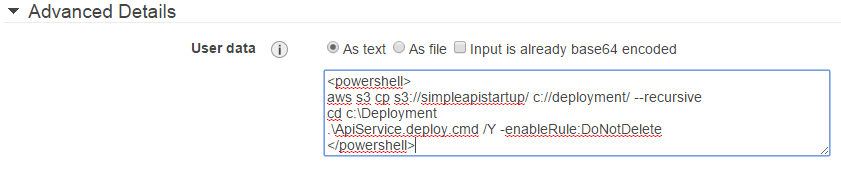 |
| Adding user data script during launch time |
Once the VM is launched successfully (and both system and instance checks passed), I can simply use the following url to access the API service.
http://ec2-54-194-113-255.eu-west-1.compute.amazonaws.com:88/api/products
The domain name in this case is the EC2 public DNS name, followed by the port number (which is where the service is running). As a note, each EC2 instance has a unique DNS name, which means I need a way to aggregate multiple instances to provide a fault tolerance service.
The EC2 Config service maintains a log of the execution of instance user data script. This is located in "C:\Program Files\Amazon\Ec2ConfigService\Logs\EC2ConfigLog.txt" file.
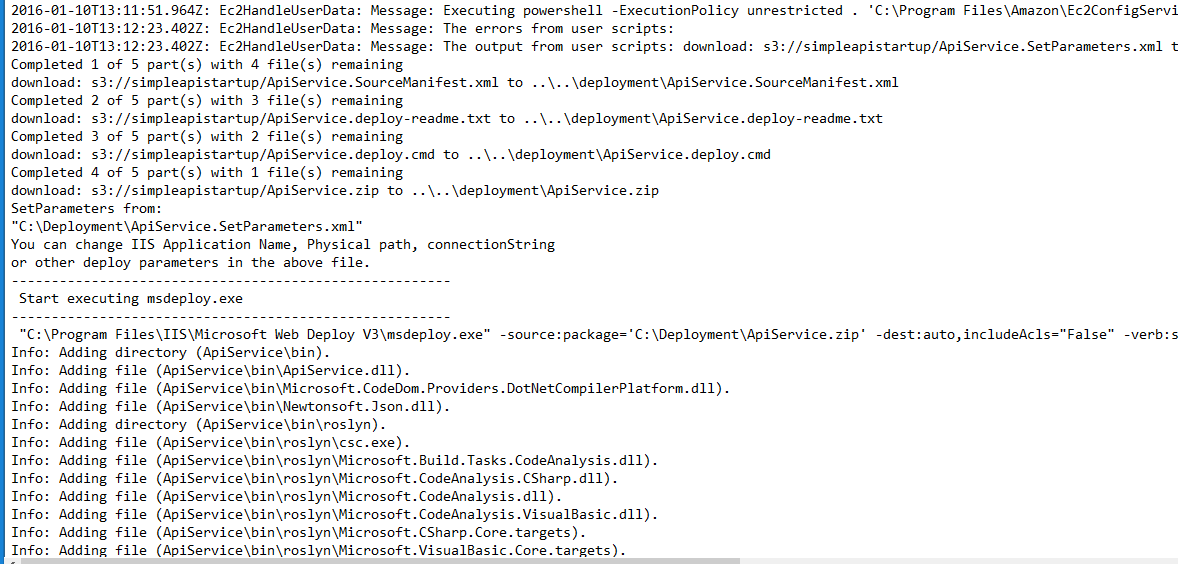 |
| Execution of the PowerShell script |
In the next post I am going to use the AWS SDK to automate the launch process.
Sunday, 10 January 2016
AWS: 2. Getting the deployent files to an EC2 instance
In the previous post I created the base image with the requisite services (e.g. IIS, WebDeploy etc) for the simple API service.
Instead of logging into each EC2 instance and installing the application, it would be really nice if I can simply deploy the application on VM on start up. I can then deploy many VMs with the application with little manual intervention.
In this port I am going to do just that!
The S3 is a highly available and highly durable object storage service on AWS platform. The AWS platform itself use S3 as a backing (e.g. log files, backups).
The first step is to create a bucket and upload the files to this bucket. I have called this bucket "simpleapistartup". I can simply use the "Upload" button to upload the files to the bucket.
The files in the S3 bucket needs to be copied to the EC2 instance on startup. In order to copy the files, the EC2 instance must have access to the bucket. The recommended solution for accessing the bucket from EC2 instance is to create an Identity and Access Management (IAM) role and associate the role with the EC2 instance. The IAM roles allow AWS resources access to other resources without having to explicitly provide access or secret keys.
The IAM role can only be associated with an EC2 instance at launch time and not when it is in running state.
I have created the role "S3ApiDeployment" that has full access to S3 and associated it with the new instance.
The next step is to provide the initialisation script to download the files from S3 to the C:\Deployment folder in the EC2 instance.
The AWS CLI is a command line based interface for developing scripts to execute against the AWS Platform.
The first step is to download the AWS CLI from here. There are multiple flavours and I have chosen the CLI for Windows. Once installed I can execute commands such as the following to access S3.
The plan is to run a script at VM boot time to download the files from S3. The following script copies the "simpleapistartup" bucket content including subdirectories to c:\Deployment folder.
The installation script is passed to the an EC2 instance through Instance User data. The User data is set during an EC2 provisioning stage. See the following screen capture.
It is important that "As Text" radio button is selected because the content is base64 encoded when transferring to EC2.
The AWS CLI script needs to be wrapped in "<script>" or "<powershell>" tags. See the following.
I decided to use "<powershell>" tag because I plan to include Powershell commandlets in the future.
OK!, this is enough for this post. In the next post I will launch an EC2 instance which will run the above script to copy the deployment files from S3.
References:
Instead of logging into each EC2 instance and installing the application, it would be really nice if I can simply deploy the application on VM on start up. I can then deploy many VMs with the application with little manual intervention.
In this port I am going to do just that!
Moving the deployment files to Simple Storage Service (S3)
The first step is to create a bucket and upload the files to this bucket. I have called this bucket "simpleapistartup". I can simply use the "Upload" button to upload the files to the bucket.
 |
| The WebDeploy packages uploaded to S3 |
Copying the installation files from S3 to EC2 instance
The IAM role can only be associated with an EC2 instance at launch time and not when it is in running state.
I have created the role "S3ApiDeployment" that has full access to S3 and associated it with the new instance.
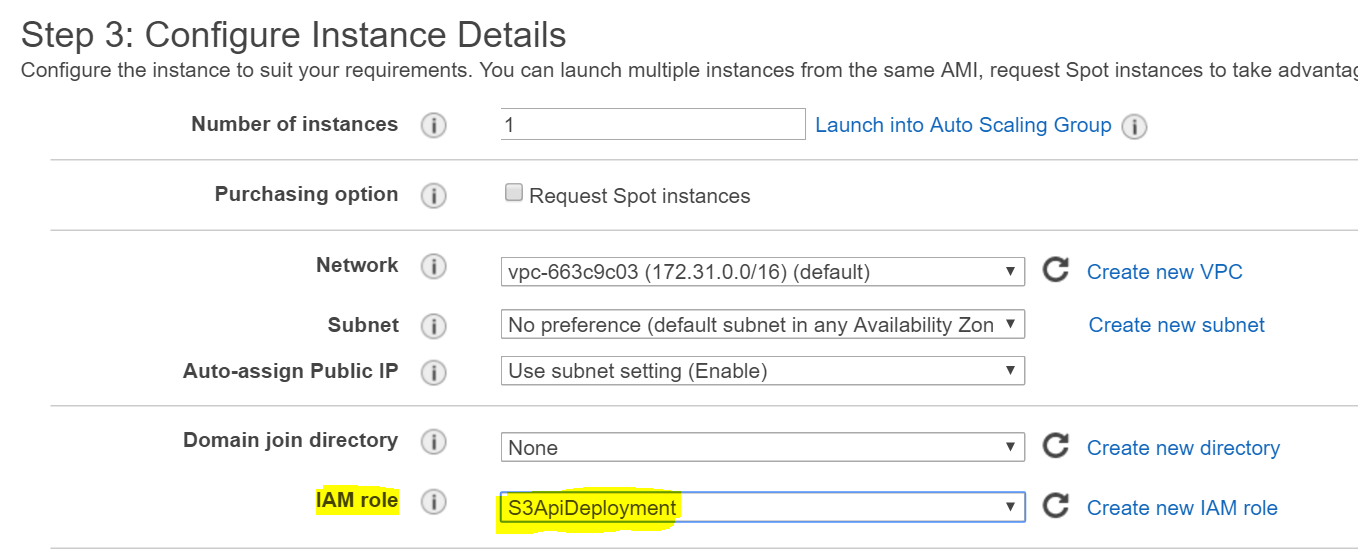 |
| Associating the role when launching a new EC2 instance |
The next step is to provide the initialisation script to download the files from S3 to the C:\Deployment folder in the EC2 instance.
The AWS Command Line Interface (CLI)
The first step is to download the AWS CLI from here. There are multiple flavours and I have chosen the CLI for Windows. Once installed I can execute commands such as the following to access S3.
- aws s3 ls - lists all the buckets from S3
The plan is to run a script at VM boot time to download the files from S3. The following script copies the "simpleapistartup" bucket content including subdirectories to c:\Deployment folder.
- aws s3 cp s3://simpleapistartup/ c://deployment/ --recursive
EC2 User data
The installation script is passed to the an EC2 instance through Instance User data. The User data is set during an EC2 provisioning stage. See the following screen capture.
 |
| Setting initialisation script through User data |
The AWS CLI script needs to be wrapped in "<script>" or "<powershell>" tags. See the following.
I decided to use "<powershell>" tag because I plan to include Powershell commandlets in the future.
OK!, this is enough for this post. In the next post I will launch an EC2 instance which will run the above script to copy the deployment files from S3.
References:
Monday, 4 January 2016
AWS: 1. Creating a base image to make deployment faster
In the previous post I deployed a WebAPI service to an EC2 instance and accessed it externally.
The Windows VM image (Amazon Machine Image - AMI) I used did not have Internet Information Service (IIS) or WebDeploy installed. I had to enable or download these features or install.
What IF I needed anther VM to deploy the same application. Then I need to follow the same steps to install the components and features. This is not a very scalable process. The solution is to create a base image or golden image. Then I can create multiple VMs using the same image.
The EC2 Dashboard provides the facility to create an image based on a running or stopped EC2 instance.
The "Image" selection in the above menu allows me to create an image. The process to create the image can take few minutes and once created it appears under "Images"/ AMIs side menu.
The base image is available under "My AMI's" and can be selected during the EC2 launch process.
I can follow the same steps and deploy the application without having to install any components.
The Windows VM image (Amazon Machine Image - AMI) I used did not have Internet Information Service (IIS) or WebDeploy installed. I had to enable or download these features or install.
What IF I needed anther VM to deploy the same application. Then I need to follow the same steps to install the components and features. This is not a very scalable process. The solution is to create a base image or golden image. Then I can create multiple VMs using the same image.
Creating the base image
The EC2 Dashboard provides the facility to create an image based on a running or stopped EC2 instance.
 |
| Creating the base image |
 |
| Base image location |
Launching a new VM using the base image
The base image is available under "My AMI's" and can be selected during the EC2 launch process.
 |
| Selecting the base image during EC2 launch |
 |
| Successful deployment |
The deployment is successful!.
Now the base image is ready and I can deploy the application very quickly. In the next post I am attempting to make this process a lot faster. (Automation!)
Thursday, 31 December 2015
AWS: 0. Deploying a WebAPI Service to EC2 instance
I have been reading so many great articles and watching videos about the AWS platform from the community for many months. Most of these resources form part of a larger solution and sometimes fails to discuss the full picture.
My attempt is to start a very simple project using ASP.NET MVC WebApi and deploy to AWS. I know there are pre-baked services such as AWS Elastic beanstalk where the deployment is made simple with templates. That is not the point.
I am going to start with poor man's deployment techniques (e.g. copy/paste) and work my way up the AWS platform.
To get started, I need a Windows Virtual Machine in AWS that can be accessed publicly. Then I will deploy my application and access it externally. I am going to deploy a ASP.NET WebAPI project that returns a simple response.
The EC2 Console allows us to launch an instance.
In order to host the Web API, I am going to select a Windows VM. I have selected a Windows 2012 R2 base image which is AWS free tier eligible.
I have accepted all the defaults from the wizard, which setting an public IP to the instance. This is very important because without a public IP address, we cannot connect to the instance from the Internet.
In order to connect to the VM, I need two pieces of information. These are 1) public IP address 2) Administrator password.
We can find the public IP address from the EC2 Dashboard. During the launching phase of the VM, I had to create/use key pair (pem file). This is required to decrypt the administrator password.
Once decrypted, I can connect to the VM using Remote Desktop Protocol (RDP).
I packaged the WebApi solution is packaged as an WebDeploy package, simply to aid in deployment. The packages can simply be copied over to the VM (copy from local machine and paste in VM).
The WebDeploy deployment package can be installed using the generated "cmd" file. I am using "-enableRule:DoNotDelete" flag to prevent WebDeploy from deleting the package.
Although the installation was successful, the service cannot be accessed publicly. The firewall of the instance only allows traffic over port 3389 (for RDP). Therefore I need to open the inbound port of the site.
The change to the security group is applied immediately. In addition to this step, I need to open the port through the Windows Firewall because the service is hosted on a non-standard port (I chose to host the site over port 88).
I can now access the service publicly.
So there you go..
In this task, I simply started up a Windows VM and copied our WebApi code and accessed it over the Internet. Except of for few security group configurations, there was not anything new compared to on-premises deployment.
In the next port I am going to look at how this process can be improved so that we are ready for the "cloud".
My attempt is to start a very simple project using ASP.NET MVC WebApi and deploy to AWS. I know there are pre-baked services such as AWS Elastic beanstalk where the deployment is made simple with templates. That is not the point.
I am going to start with poor man's deployment techniques (e.g. copy/paste) and work my way up the AWS platform.
To get started, I need a Windows Virtual Machine in AWS that can be accessed publicly. Then I will deploy my application and access it externally. I am going to deploy a ASP.NET WebAPI project that returns a simple response.
Creating a Virtual Machine
The EC2 Console allows us to launch an instance.
 |
| EC2 Dashboard where the an EC2 instance can be launched |
In order to host the Web API, I am going to select a Windows VM. I have selected a Windows 2012 R2 base image which is AWS free tier eligible.
Public IP address for the instance
 |
| Auto assigning a public IP address to the instance |
Connecting to the Virtual Machine
We can find the public IP address from the EC2 Dashboard. During the launching phase of the VM, I had to create/use key pair (pem file). This is required to decrypt the administrator password.
Once decrypted, I can connect to the VM using Remote Desktop Protocol (RDP).
Deploying the package
I packaged the WebApi solution is packaged as an WebDeploy package, simply to aid in deployment. The packages can simply be copied over to the VM (copy from local machine and paste in VM).
 |
| WebDeploy files copied over to the Windows VM on AWS Platform |
The WebDeploy deployment package can be installed using the generated "cmd" file. I am using "-enableRule:DoNotDelete" flag to prevent WebDeploy from deleting the package.
 |
| Installing the WebDeploy package in Windows VM |
Although the installation was successful, the service cannot be accessed publicly. The firewall of the instance only allows traffic over port 3389 (for RDP). Therefore I need to open the inbound port of the site.
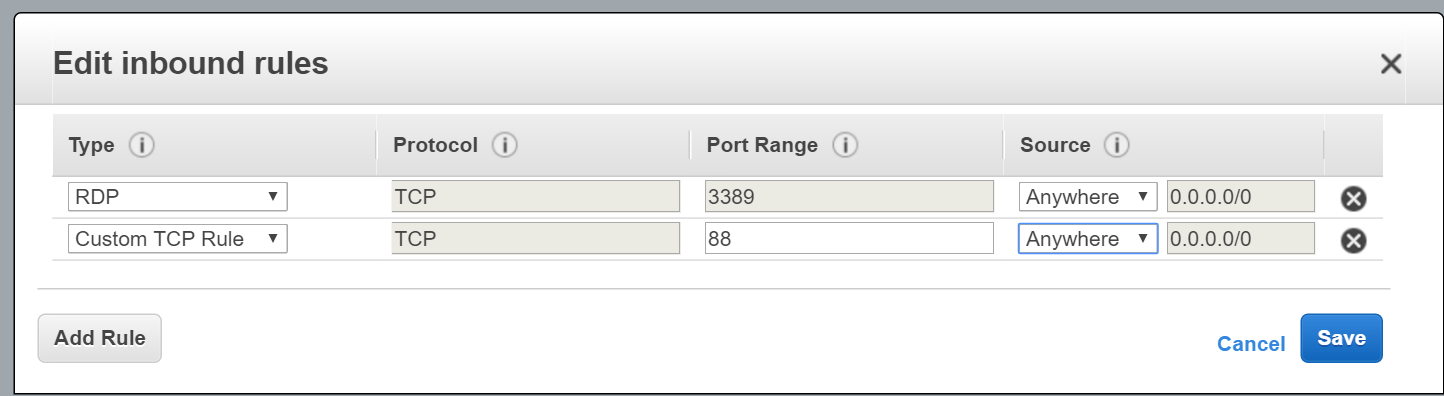 |
| Opening port 88 to the world |
The change to the security group is applied immediately. In addition to this step, I need to open the port through the Windows Firewall because the service is hosted on a non-standard port (I chose to host the site over port 88).
I can now access the service publicly.
 |
| Connecting to the service remotely |
In this task, I simply started up a Windows VM and copied our WebApi code and accessed it over the Internet. Except of for few security group configurations, there was not anything new compared to on-premises deployment.
In the next port I am going to look at how this process can be improved so that we are ready for the "cloud".
Friday, 25 December 2015
AWS: No internet access on default VPC
The launching an EC2 instances on the AWS platform is pretty easy and hardly a task. However things get pretty interesting when things does not work.
After blindly accepting all the defaults for launching an EC2 instance, I could not open an SSH session to the server. The connecting was timing out.
Take 1
I was using a Windows OS to connect to Linux. The Windows firewall the first point of interest. The connectivity still failed after opening up port 22 on my Windows machine. So this was not the issue.Take 2
The AWS security group was the next. The AWS security groups provides an instance level firewall that allow traffic to an instance. Generally this AWS warns if you do not open up SSH or RDP port. (I did not see this) I checked the Security group and the SSH port was opened for inbound. All traffic was opened for outbound. So the security group was not the issue.
Take 2.1
In pure desperation I launched a different instance in a separate Availability Zone. This new instance allowed SSH connectivity. So could it be an issue with AWS? The next point of call was to check whether the EC2 service is operating normally in the region using the AWS health portal. This was fine!, so its not AWS.
Take 3
Instances connect to outside world through an Internet Gateway. As the name implies, an Internet Gateway allows a subnet to connect to the internet. I checked the subnets route table and I can see that the outbound traffic from 0.0.0.0/0 is being forwarded to the Internet Gateway. There is nothing wrong with the Internet Gateway.
Take 4
The network traffic flows through the Network Access Control list (NACL), which is at the subnet level. To my surprise the outbound and inbound traffic was set to DENY. At this point I realised that the network traffic was being stopped at the NACL level. The solution was quite simple, I simply added 0.0.0.0/0 ALLOW rule for both inbound and outbound NACL before the DENY rule. Remember that NACLs are stateless and rules are executed in order. By adding the ALLOW rule before the DENY rule allowed the network traffic to enter and leave the subnet.. and most importantly I had my internet
Monday, 23 November 2015
AWS Command line
I have to admit that AWS Command line probably is the best thing about AWS.
I started using the AWS Command line over PoweShell and it is amazingly approachable and user friendly.
If you are playing around in the UI, I seriously suggest using the AWS Command line. More info here.
Next step is to start using it in the Mac.
Subscribe to:
Posts (Atom)